

 Platform
 W&B Models
 W&B Weave
 W&B Inference
 W&B Training
 Release Notes
A workspace is limited to displaying a maximum of 1000 runs, regardless of its configuration.
Add or remove columns
Add or remove columns in the Runs tab or Workspace tab to customize which properties associated with your project are visible. For both cases, you can optionally search by column name using fuzzy search, an exact match, or regular expressions. To add a columns in the Runs table or Workspace:- In the project sidebar, select either the Runs tab or the Workspace tab.
- Above the list of runs, click the Columns (six horizontal dashes) button.
- Select the name of a property within the Hidden section of the modal.
- Drag columns to change their order.
- Click Close.
- In the project sidebar, select either the Runs tab or the Workspace tab.
- Above the list of runs, click the Columns (six horizontal dashes) button.
- Select the name of a property within the Visible & Pinned section of the modal.
- Click Close.
Sort runs by column
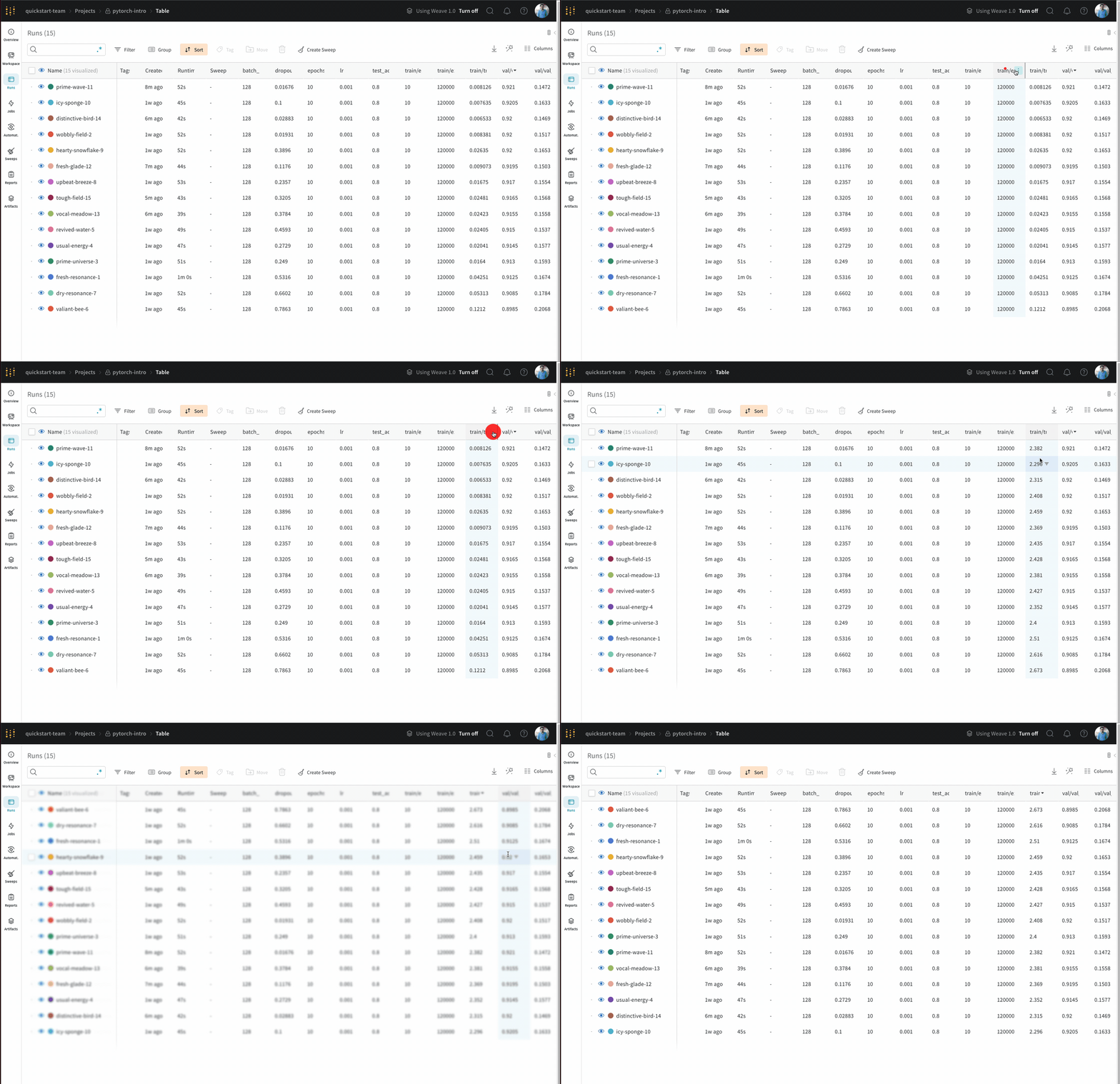
Sort runs by any visible column in the Runs tab or Workspace tab. This is particularly useful if you want to view the best (or worst) recorded value. To sort the list of runs by any visible column:- Hover over the column name, then click its action
...menu. - Optinally hover over Show latest. From the dropdown, select latest, min, or max.
- Click Sort ascending or Sort descending.
Pin columns
Pinned columns are shown on the left-hand side. Unpinned columns are shown on the right-hand side of the Runs tab or Workspace tab. If you pin a column in the Runs tab, it is also pinned in the Workspace tab. Similarly, if you pin a column in the Workspace tab, it is also pinned in the Runs tab. To pin a column:- In the project sidebar, navigate to the Workspace or Runs tab.
- Click the Columns (six horizontal dashes) button.
- Within the Visible & Pinned section of the modal, click on the pin icon next to the column name you want to pin.
- In the project sidebar, navigate to the Workspace or Runs tab.
- Either hover over the column name, then click its action
...menu, or click the Columns (six horizontal dashes) button and click on the pin icon next to the column name you want to unpin. - Click Unpin column.