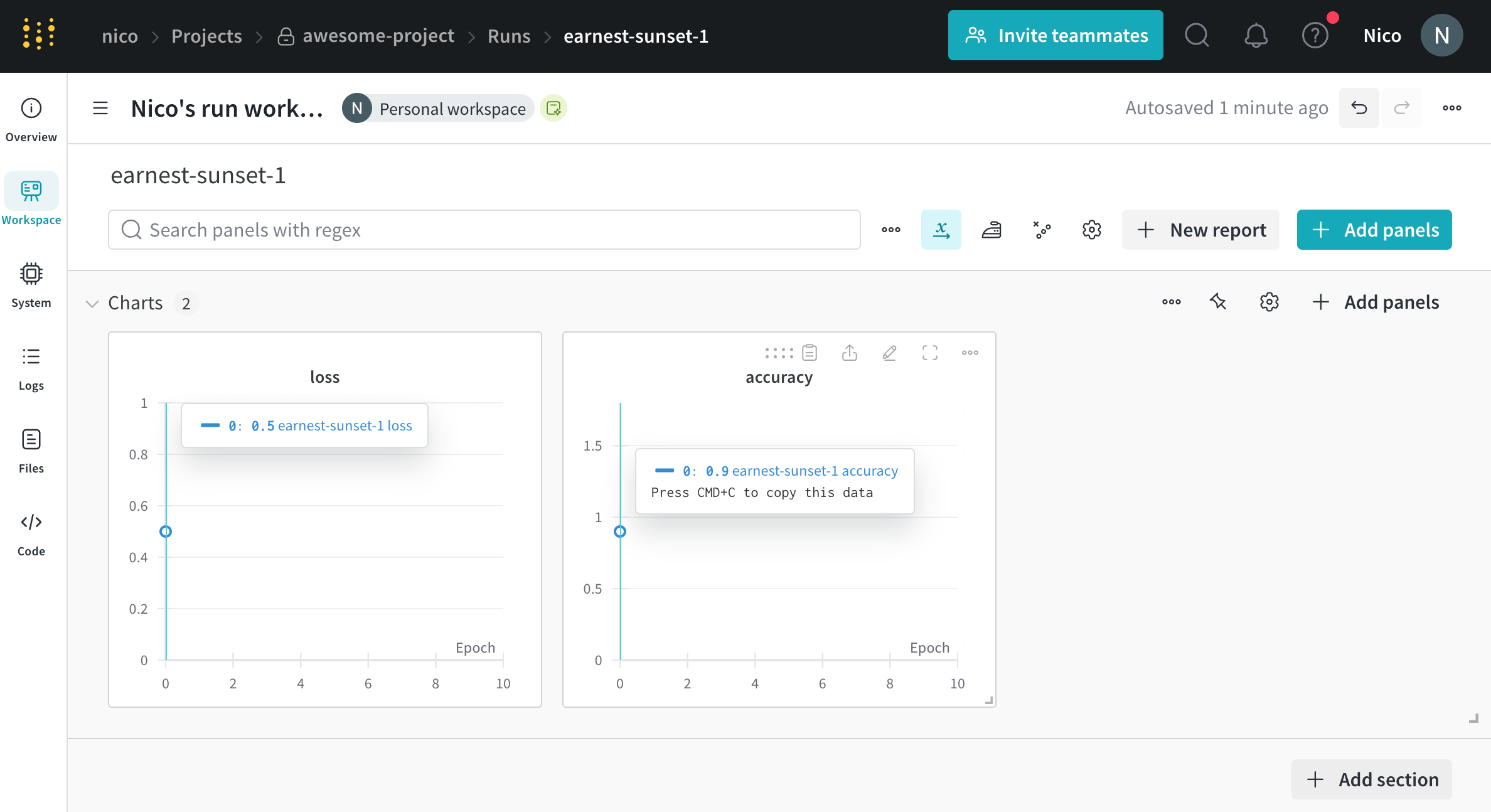
A run is a single unit of computation logged by W&B. You can think of a W&B Run as an atomic element of your whole project. In other words, each run is a record of a specific computation, such as training a model and logging the results, hyperparameter sweeps, and so forth.
Common patterns for initiating a run include, but are not limited to:
- Training a model
- Changing a hyperparameter and conducting a new experiment
- Conducting a new machine learning experiment with a different model
- Logging data or a model as a W&B Artifact
- Downloading a W&B Artifact
Each run has a unique identifier known as a run ID. You can specify a unique ID or let W&B randomly generate one for you.
Each run also has a human-readable, non-unique run name. You can specify a name for your run or let W&B randomly generate one for you. You can rename a run after initializing it.
W&B logs your run to a project. You specify the project when you initialize the run with wandb.init(project=). W&B creates a new project if the project does not exist. If the project does exist, W&B logs the run to the project specified.
If you do not specify a project name, W&B stores the run in a project called Uncategorized.
wandb.init() to log metrics, artifacts, and other information to the run. Anything you log with wandb.Run.log() is recorded to that run.
Each run has a state that describes the current status of the run. See Run states for a full list of possible run states.
View runs and their properties within the run’s project workspace on the W&B App. You can also programmatically access run properties with the wandb.Api.Run object.
As an example, consider the following code snippet that initializes a W&B run and logs some metrics to it:
Pass your W&B entity to the entity variable in the code snippets below if you want to follow along. Your entity is your W&B username or team name. You can find it in the URL of your W&B App workspace. For example, if your workspace URL is https://wandb.ai/nico/awesome-project, then your entity is nico.
import wandb

entity = "nico"  # Replace with your W&B entity
project = "awesome-project"

with wandb.init(entity=entity, project=project) as run:
    run.log({"accuracy": 0.9, "loss": 0.1})
awesome-project under the entity nico. The third line logs the accuracy and loss of the model to that run.
Within the terminal, W&B returns:
wandb: Syncing run earnest-sunset-1
wandb: ⭐️ View project at https://wandb.ai/nico/awesome-project
wandb: 🚀 View run at https://wandb.ai/nico/awesome-project/runs/1jx1ud12
wandb:
wandb:
wandb: Run history:
wandb: accuracy ▁
wandb:     loss ▁
wandb:
wandb: Run summary:
wandb: accuracy 0.9
wandb:     loss 0.5
wandb:
wandb: 🚀 View run earnest-sunset-1 at: https://wandb.ai/nico/awesome-project/runs/1jx1ud12
wandb: ⭐️ View project at: https://wandb.ai/nico/awesome-project
wandb: Synced 6 W&B file(s), 0 media file(s), 0 artifact file(s) and 0 other file(s)
wandb: Find logs at: ./wandb/run-20241105_111006-1jx1ud12/logs
import wandb
import random

config = {
    "epochs": 10,
    "learning_rate": 0.01,
}

with wandb.init(project="awesome-project", config=config) as run:
    print(f"lr: {config['learning_rate']}")

    # Simulating a training run
    for epoch in range(config['epochs']):
      offset = random.random() / 5
      acc = 1 - 2**-epoch - random.random() / (epoch + 1) - offset
      loss = 2**-epoch + random.random() / (epoch + 1) + offset
      print(f"epoch={epoch}, accuracy={acc}, loss={loss}")
      run.log({"accuracy": acc, "loss": loss})
wandb.Run.log() 10 times. Each time the script calls wandb.Run.log(), W&B logs the accuracy and loss for that epoch.
Within your terminal, you should see output similar to the following:
wandb: Syncing run jolly-haze-4
wandb: ⭐️ View project at https://wandb.ai/nico/awesome-project
wandb: 🚀 View run at https://wandb.ai/nico/awesome-project/runs/pdo5110r
lr: 0.01
epoch=0, accuracy=-0.10070974957523078, loss=1.985328507123956
epoch=1, accuracy=0.2884687745057535, loss=0.7374362314407752
epoch=2, accuracy=0.7347387967382066, loss=0.4402409835486663
epoch=3, accuracy=0.7667969248039795, loss=0.26176963846423457
epoch=4, accuracy=0.7446848791003173, loss=0.24808611724405083
epoch=5, accuracy=0.8035095836268268, loss=0.16169791827329466
epoch=6, accuracy=0.861349032371624, loss=0.03432578493587426
epoch=7, accuracy=0.8794926436276016, loss=0.10331872172219471
epoch=8, accuracy=0.9424839917077272, loss=0.07767793473500445
epoch=9, accuracy=0.9584880427028566, loss=0.10531971149250456
wandb: 🚀 View run jolly-haze-4 at: https://wandb.ai/nico/awesome-project/runs/pdo5110r
wandb: Find logs at: wandb/run-20241105_111816-pdo5110r/logs
jolly-haze-4. This is because the script calls wandb.init() method only once.
Copy and paste the URL that W&B prints from the previous output into your browser. The URL directs you to the run’s workspace in the W&B App UI. For example, the following image shows the workspace for the run jolly-haze-4:
Add a note to a run
Notes that you add to a specific run appear on the run page in the Overview tab and in the table of runs on the project page.
- Navigate to your W&B project
- Select the Workspace tab from the project sidebar
- Select the run you want to add a note to from the run selector
- Choose the Overview tab
- Select the pencil icon next to the Description field and add your notes


 Platform
 W&B Models
 W&B Weave
 W&B Inference
 W&B Training
 Release Notes